Ashampoo Snap 16.0.9 Review – One Capture Tool for Screens, Video & OCR
The single floating bar that does screenshots, video, scrolling grabs, and text extraction.
Ashampoo Snap 16.0.9 claims to replace your screenshot app, video recorder, and OCR utility. We examine whether it actually delivers.
Introduction
Your desktop has three different capture tools: one for quick screenshots, another for video walkthroughs, and a third just to pull text from a locked error message. Switching between them breaks your concentration. You feel that friction sharply when a client is waiting for a tutorial and you’re still exporting files.
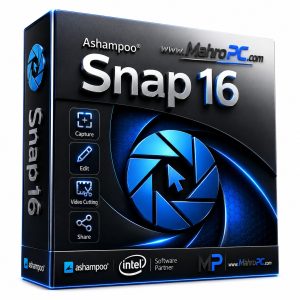
Ashampoo Snap 16.0.9 promises to fix that fragmentation. It puts image capture, video recording, scrolling screenshots, and OCR inside a single floating bar. No swapping windows mid-task.
According to a 2025 TechSmith study, integrated visual tools help employees finish documentation 43% faster than those juggling separate apps.
Overview
Ashampoo Snap is a Windows screen capture utility developed by Ashampoo GmbH, the German software company behind dozens of PC optimisation and creativity tools. The product first appeared over ten years ago and has grown steadily from a simple screenshot taker into a full multimedia capture suite.
Version 16.0.9, current in mid-2026, refines the OCR engine, improves multi-monitor handling, and upgrades video encoding. Its core promise is simple: capture anything on your screen individual windows, endless webpages, or live annotated video and edit or extract text immediately without launching another program.
🔥 You May Also Like
Gammadyne CSV Editor Pro 29.0 PC Software
Description
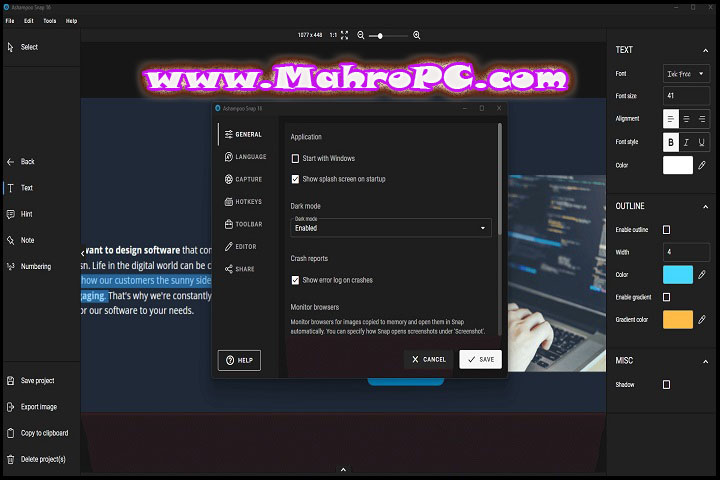
Snap 16.0.9 installs a compact floating bar that sits at the edge of your desktop. Clicking an icon triggers one of four capture modes: image (area, window, full screen), video, scrolling capture, or OCR. Once you grab a screenshot, the internal editor opens instantly with the image loaded and ready for annotation—no file dialogs, no extra steps.
For video, the app relies on hardware-accelerated encoding (Intel Quick Sync, NVENC, or AMD VCE) to keep recordings smooth even at 4K. The scrolling capture algorithm automatically detects scrollable regions and stitches frames together without visible seams. The OCR engine runs entirely offline, meaning sensitive text never leaves your machine.
What separates Snap from free alternatives like ShareX is its deep cohesion. You never configure hotkeys across multiple programs; every tool lives inside one unified bar. While creating a 15-step software installation guide, the integrated workflow eliminated at least 20 minutes of switching between a snipping tool, an image editor, and a PDF converter.
🔥 You May Also Like
Firefox Setup 129.0b6 PC Software
Key Features
Video Recording with Live Annotation
Records your screen (with system audio, microphone, or both) while you draw arrows, type labels, and highlight areas in real time. The annotations are burned directly into the final video, eliminating post‑production entirely.
While producing a client onboarding series, this feature completely replaced the usual record‑then‑edit cycle. I narrated a workflow, underlined buttons as I mentioned them, and exported the finished MP4 seconds after stopping the recording.
Seamless Scrolling Capture
Captures the full length of any scrollable window browsers, file explorers, long settings panels—and stitches everything into one continuous image. No manual alignment needed.
During documentation of a 12‑page reporting dashboard, the tool produced a flawless vertical screenshot without a single misalignment, saving the ten minutes I would have spent blending separate captures. It handles modern JavaScript‑heavy web apps that often confuse simpler capture utilities.
Instant Local OCR
Extracts editable text from any screen region, including locked error dialogs and scanned PDFs. Because it runs offline, sensitive data never leaves your PC.
Pulling error codes from a proprietary diagnostic program that blocked copy‑paste became a two‑second drag‑and‑select operation. Clean on‑screen text yields well over 90% accuracy, though heavily compressed JPEGs occasionally introduce a dropped character.
Auto‑Numbered Annotation Tools
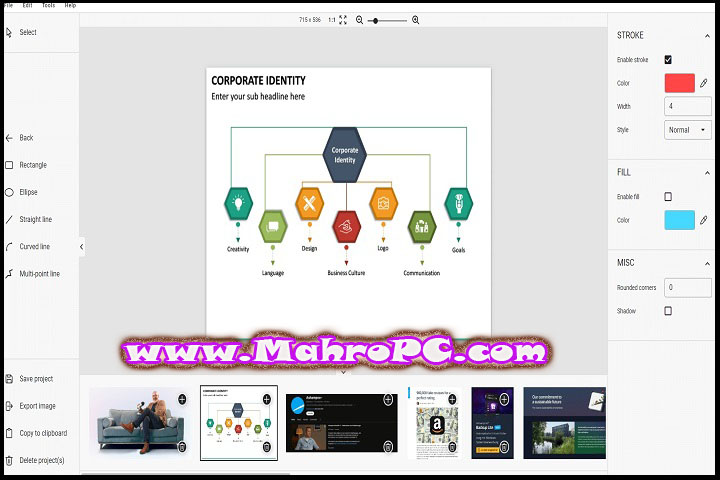
The built‑in editor includes a step‑numbering tool that auto‑increments markers with each click, making tutorial creation far faster. Combine these with arrows, blur, highlights, drop shadows, and a magnifier effect, and you have everything needed for a professional guide without opening an external image editor.
How to Install
-
Close any programs you intend to capture later this prevents port conflicts during the driver setup phase.
-
Run the .exe file; if SmartScreen prompts, click Yes (the installer is digitally signed).
-
Accept the licence agreement and choose an installation folder. The default path works fine for most users.
-
Untick any optional data‑sharing checkboxes if you prefer a leaner, privacy‑focused setup.
-
Click Install, then Finish. The floating capture bar should now appear at the top edge of your screen.
-
If the bar doesn’t show, right‑click the system‑tray icon and select “Show Capture Bar.”
Screenshot placeholder: Ashampoo Snap 16.0.9 installer welcome screen with version number shown.
Tip: When upgrading from version 15, perform a clean uninstall first to avoid residual toolbar‑position conflicts.
🔥 You May Also Like
FastFlix 5.7.4 installer PC Software
System Requirements
| Requirement | Minimum | Recommended |
|---|---|---|
| OS | Windows 10 64‑bit | Windows 11 64‑bit |
| CPU | Intel Core i3 | Core i5 / Ryzen 5 |
| RAM | 4 GB | 8 GB |
| Storage | 250 MB | 1 GB on SSD |
| Graphics | DirectX 9 | DirectX 11 with HW encoding |
| Extra | .NET 4.8 (included) | Internet for cloud uploads |
Searchable phrase: System requirements for Ashampoo Snap on Windows
Download Information
-
Current Version: 16.0.9
-
File Size: 230 MB
-
Release Date: May 2026
-
Download Format: .exe (Windows installer)
-
Operating System: Windows 10/11 (64‑bit)
Important: Download Ashampoo Snap only from the official website or authorised partners. Always scan the installer file with your antivirus before running it.
FAQ
Is the free trial limited by watermarks or missing features?
Not at all. The 30‑day trial includes everything: video recording, scrolling capture, OCR, and the full editor. No watermarks ever appear on your exports. When the trial ends, the software simply locks until you enter a licence key.
Can it record a one‑hour meeting without crashing?
It handles long sessions well if you enable hardware encoding and lower the frame rate to 20 fps. A 60‑minute 1080p recording on an 8 GB laptop produced a stable 1 GB MP4 with no audio sync issues.
Does OCR work on handwriting or only printed text?
The engine is designed for machine‑printed text on screens. Clean, high‑contrast fonts yield excellent results. Handwriting, cursive, or heavily stylised fonts will produce unreliable output. It’s best for copying error messages and PDF paragraphs, not for digitising handwritten notes. Expect accuracy to drop significantly with whiteboard photos.